Using Canva as a Motion Designer: Moodboards, AI Tools, Assets & Fast Client Work

Canva might not be traditional animation software, but using Canva as a motion designer has become an important part of my workflow. I don’t use it to replace professional motion tools — I use it to think faster, gather assets, explore ideas, and deliver certain projects quickly when time matters. Here’s exactly how Canva fits into my motion design process., and lets keep it real:
Using Canva for Motion Design Moodboards
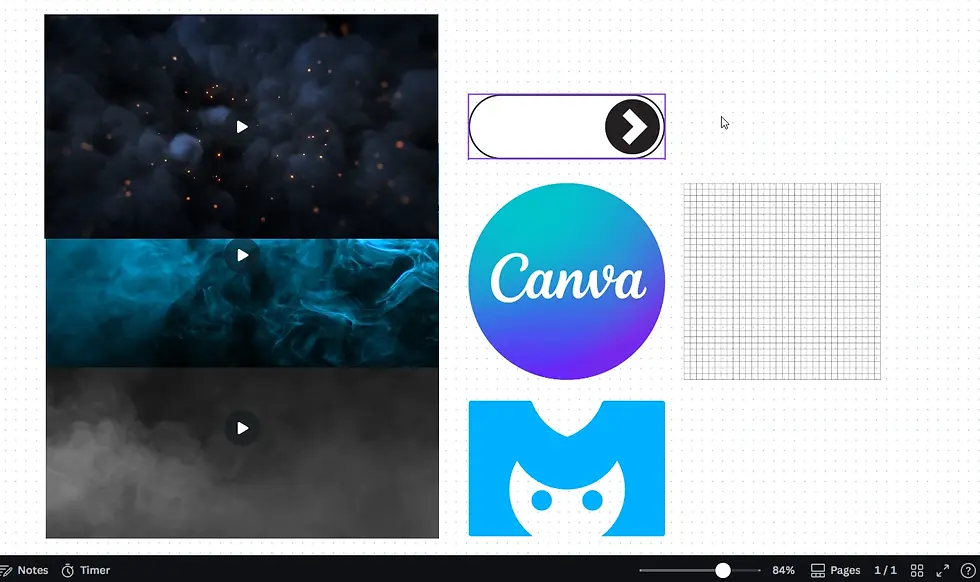
One of the most powerful parts of my Canva workflow for designers is building moodboards.
Instead of collecting inspiration across endless tabs, I place everything into one visual space:
Style references
Color directions
Typography ideas
Layout inspiration
Textures and imagery
This helps me explore creative directions quickly and share them with clients just as fast. Canva becomes a visual thinking tool, allowing me to test looks and align on style before I even start animating.
To create a moodboard go to create new and choose the whiteboards option.

For early creative stages, creating moodboards in Canva saves a huge amount of time.
These early visual directions also help when building a strong design portfolio, because they show how ideas develop from concept to execution.
Using Canva AI as a Creative Assistant
Canva’s AI features are useful — but I use them strategically.
I rely on AI for:
Idea exploration
Quick visual concepts
Background directions
But I don’t depend on AI for final visuals. AI-generated results can sometimes look inconsistent or overly artificial. Instead, I treat AI as a brainstorming assistant that helps spark ideas, which I later refine using more controlled design and motion tools.
This keeps creativity flowing without sacrificing quality.
Canva for Motion Design Assets (A Smart Workflow Hack)
Another big reason I use Canva for motion design is asset sourcing.
Instead of generating everything with AI, I use Canva’s built-in library to find:
Stock videos
Background visuals
Textures
Graphic elements
This is often faster and more reliable than prompting AI repeatedly.
Choosing the right visuals and layouts quickly is key when creating eye-catching graphic designs for social platforms.
The Export Workaround
Canva doesn’t allow direct downloads of individual assets, but here’s the workaround I use:
Place the asset you want on the canvas
Add another element (like a simple shape)
Move that extra element behind or fully hide it
Export the design
Now the asset is included in your exported file and can be used inside your motion design software. This turns Canva into a fast asset sourcing tool within my motion workflow.
Using Canva When a Project Needs to Be Delivered Fast
When timelines are tight, Canva becomes part of my fast social media design workflow.
I use it to:
Mock up reels
Create quick social posts
Test layouts
Present visual directions
Even when working fast, I still follow core motion design principles that make visuals more engaging and polished.
Instead of building a fully polished motion piece right away, I can create a strong visual draft quickly. This helps clients see the direction fast and reduces back-and-forth revisions.
For urgent projects, using Canva as a motion designer helps me deliver presentable results under pressure, and also lets be real:
(this is an interactive element)
Adding Sound Effects to Existing Work
Sometimes I need a social-ready version of a project with simple sound.
Instead of reopening a heavy motion file, I can:
Import visuals into Canva
Add light sound effects
Export a platform-ready version
It’s a quick way to make content feel more complete without rebuilding the project from scratch.
Canva Is a Workflow Booster — Not a Replacement
To be clear, Canva doesn’t replace professional motion software. Precision animation, advanced effects, and complex sequences still belong in dedicated tools.
But using Canva as a motion designer helps me:
Plan faster
Build moodboards efficiently
Source assets quickly
Explore ideas with AI
Deliver urgent social content
Add simple sound when needed
It acts as a speed layer in my process — not the main engine, but a powerful support tool that makes my workflow smoother and more efficient.


